
Getting Started with TeamContext and Claude Code
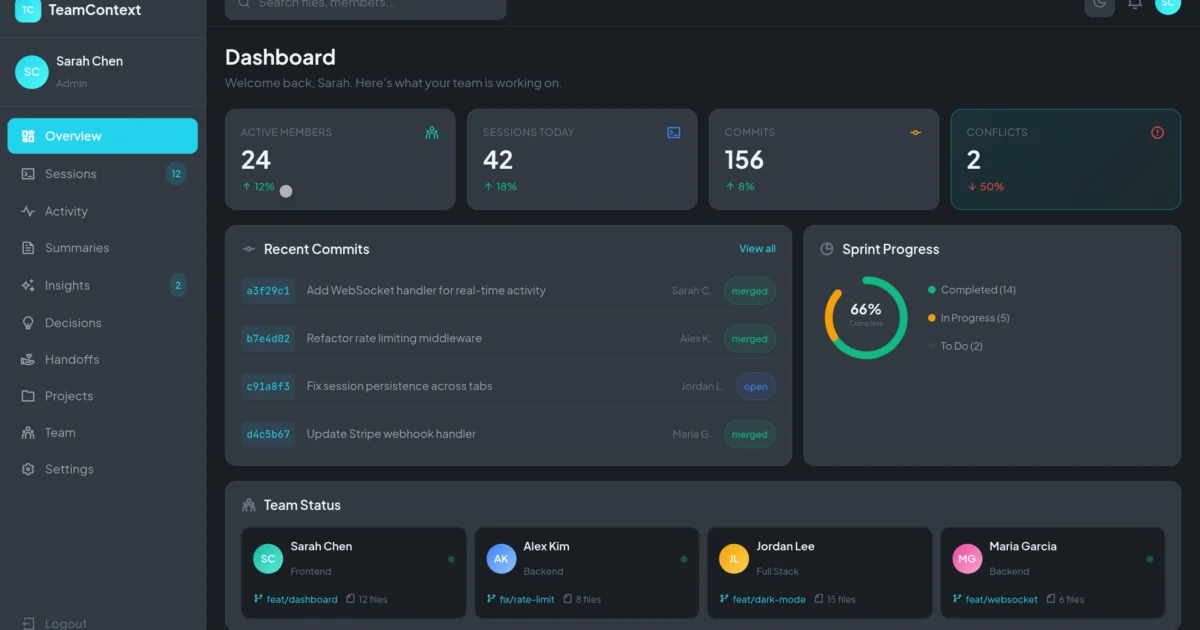
This guide walks you through setting up TeamContext for your engineering team in under 2 minutes.
Prerequisites
You’ll need Claude Code installed and a TeamContext account (free tier works fine for getting started).
Step 1: Install the MCP Server
Run the following command in your terminal:
npx @teamcontext/mcp-server initThis installs the TeamContext MCP server and adds it to your Claude Code configuration.
Step 2: Authenticate
The installer will prompt you to log in to your TeamContext account. Once authenticated, your API key is automatically configured.
Step 3: Start Coding
That’s it. Use Claude Code as you normally would. TeamContext runs silently in the background, capturing context from every session.
Step 4: Check Your Dashboard
Open the TeamContext dashboard to see your activity. You should see events flowing within seconds of starting a Claude session.
Invite Your Team
Go to Settings → Team to invite your teammates. Each person runs the same install command, and everyone’s activity appears in the shared dashboard.